mirror of
https://github.com/jonasbark/swiftcontrol.git
synced 2026-11-29 09:11:17 +01:00
 905c2641cd
Denial of Apple's Local Network privacy permission is the most common cause of
"BikeControl can't see my trainer app" on iOS and macOS, and it fails
completely silently: Bonjour browses return nothing forever, advertisements
never leave the device, nothing throws. An app watching only for errors cannot
tell "permission is off" from "there is nothing out there".

Apple ships no authorization-status API for it (not iOS 14...26, not macOS
15...26), so the new local_network_permission plugin measures it: an NWListener
and an NWBrowser on _bikecontrol-preflight._tcp, then

  browser discovers the listener        -> granted
  kDNSServiceErr_PolicyDenied (-65570)  -> denied
  neither, before the deadline          -> unknown

unknown is a real outcome, not an error — a device with no usable network never
completes the round trip even when the permission is fine — so everything fails
open on it and only a positive denial blocks the user.

The probe *is* the request: the system prompt fires on the first Bonjour
operation, so there is no separate request step, and after the user answers,
System Settings is the only way back.

- LocalNetworkAccess caches the result (probes cost a real round trip while
  getStatus() runs on every tile mount, tap and resume) and collapses
  concurrent probes into one, since two listeners on the same service type
  would resolve each other.
- LocalNetworkRequirement gates the three LAN tiles: MyWhoosh Link, Zwift mDNS
  and OpenBikeControl mDNS. Suppressed in screenshot/demo mode like the rest.
- Diagnostics drop the old guess (inferred from whether a discovery scan
  returned anything, which could not tell denied from an empty LAN) for the
  measured local-network=granted|denied|unknown.
- _bikecontrol-preflight._tcp added to NSBonjourServices on both platforms;
  without it the browse fails for a reason unrelated to the permission.

The Xcode project deployment-target bumps (ios 13.0->15.0, macos 10.15->12.0)
are Flutter's own migration aligning project defaults with the Podfiles; they
happen on any first build.

Verified with real builds on both platforms, not just analysis: flutter build
macos --debug and flutter build ios --no-codesign both succeed, the framework
is linked in, and the preflight service type is present in both built
Info.plists. 35 tests cover the mapping, cache, concurrency and fail-open
behaviour.

Co-Authored-By: Claude Opus 5 (1M context) <noreply@anthropic.com>
2.4 KiB
2.4 KiB
Instructions for using the MyWhoosh "Link" connection method
- Launch MyWhoosh on the device of your choice
- Only needed once: open the "MyWhoosh Link" app on the same device where you want to use BikeControl. Make sure the Link app is able to connect to MyWhoosh. If it does, close MyWhoosh Link.
- Make sure the "MyWhoosh Link" app is not active at the same time as BikeControl
- Open BikeControl, enable the Link connection method, and follow the on-screen instructions
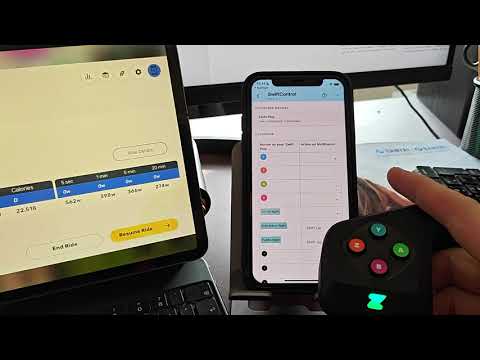
Here's a video with a few explanations. Note that it uses an older version, but the idea is the same.
 https://www.youtube.com/watch?v=p8sgQhuufeI
MyWhoosh "Link" method never connects
This is a network/local-discovery problem. BikeControl needs the same kind of local network access as MyWhoosh Link.
Checklist:
- iOS / macOS: check the Local Network permission first. Without it every Link connection fails silently — nothing is logged, the app just never appears.
- iOS: Settings → BikeControl → Local Network
- macOS: System Settings → Privacy & Security → Local Network
- BikeControl checks this itself and offers to open the right page, but the toggle can be revoked later (and on macOS it is sometimes lost across a reboot).
- Use the MyWhoosh Link app to confirm if "Link" works in general
- Use MyWhoosh Link app and connect, then close it, then open up BikeControl - this is key for some users
- Both devices (if you use BikeControl on another device than MyWhoosh) are on the same Wi‑Fi SSID
- Avoid “Guest” networks
- Avoid “extenders/mesh guest mode” and networks with device isolation
- If your router has it, disable:
- “AP isolation / client isolation”
- Try moving both devices to the same band:
- Prefer 2.4 GHz (often more reliable for local discovery than mixed/steering)
- Temporarily disable:
- VPNs
- iCloud Private Relay (if enabled)
- “Limit IP Address Tracking” (iOS Wi‑Fi option)
- iOS Wi‑Fi settings for that network:
- Turn off Private Wi‑Fi Address
- Turn off Limit IP Address Tracking
- Mesh networks: may work, but if it doesn’t, test with a simple router or phone hotspot.
Official MyWhoosh troubleshooting links: