mirror of
https://github.com/jonasbark/swiftcontrol.git
synced 2026-02-18 00:17:40 +01:00
 0fd141316e
Updated instructions for using MyWhoosh Link connection method to clarify optional steps and improve readability.
1.6 KiB
1.6 KiB
Instructions for using the MyWhoosh "Link" connection method
- launch MyWhoosh on the device of your choice
- OPTIONAL: launch MyWhoosh Link, confirm the "Link" connection works at all. close MyWhoosh Link - very important!
- open BikeControl, follow the on-screen instructions
Once you've confirmed the connection in BikeControl you won't have to do step 2 in the future. This is just to make sure the connection works in general.
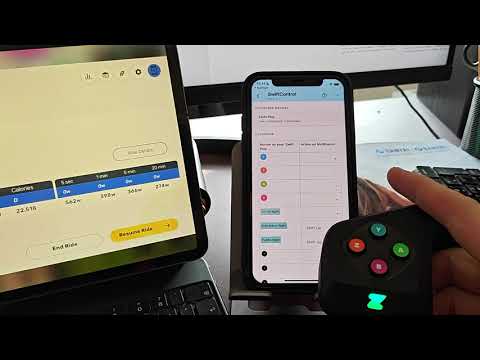
And here's a video with a few explanations:
 https://www.youtube.com/watch?v=p8sgQhuufeI
The MyWhoosh Link app itself works fine, but BikeControl doesn't connect
The MyWhoosh Link app must not run simultaneously with BikeControl. Make sure the MyWhoosh Link app is fully closed, then reopen BikeControl and try connecting again.
MyWhoosh "Link" method never connects
The same network restrictions apply for BikeControl as it applies to MyWhoosh Link app. Please verify with the MyWhoosh Link app if a connection is possible at all. Here are some instructions that can help:
https://mywhoosh.com/troubleshoot/ https://www.facebook.com/groups/mywhoosh/posts/1323791068858873/
In essence:
- your two devices (phone, tablet) need to be on the same WiFi network
- on iOS you have to turn off "Private Wi-Fi Address" in the WiFi settings
- Limit IP Address Tracking may need to be disabled
- mesh networks may not work