mirror of
https://github.com/jonasbark/swiftcontrol.git
synced 2026-02-17 16:07:41 +01:00
 9a74a14804
Updated instructions for using the MyWhoosh 'Link' connection method, including clarification on app usage and connection steps.
2.0 KiB
2.0 KiB
Instructions for using the MyWhoosh "Link" connection method
- Launch MyWhoosh on the device of your choice
- Only needed once: open the "MyWhoosh Link" app on the same device where you want to use BikeControl. Make sure the Link app is able to connect to MyWhoosh. If it does, close MyWhoosh Link.
- Make sure the "MyWhoosh Link" app is not active at the same time as BikeControl
- Open BikeControl, enable the Link connection method, and follow the on-screen instructions
Here's a video with a few explanations. Note that it uses an older version, but the idea is the same.
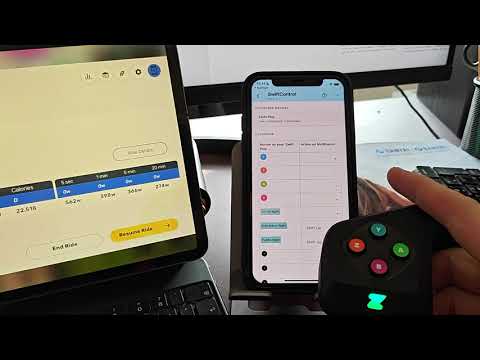 https://www.youtube.com/watch?v=p8sgQhuufeI
MyWhoosh "Link" method never connects
This is a network/local-discovery problem. BikeControl needs the same kind of local network access as MyWhoosh Link.
Checklist:
- Use the MyWhoosh Link app to confirm if "Link" works in general
- Use MyWhoosh Link app and connect, then close it, then open up BikeControl - this is key for some users
- Both devices (if you use BikeControl on another device than MyWhoosh) are on the same Wi‑Fi SSID
- Avoid “Guest” networks
- Avoid “extenders/mesh guest mode” and networks with device isolation
- If your router has it, disable:
- “AP isolation / client isolation”
- Try moving both devices to the same band:
- Prefer 2.4 GHz (often more reliable for local discovery than mixed/steering)
- Temporarily disable:
- VPNs
- iCloud Private Relay (if enabled)
- “Limit IP Address Tracking” (iOS Wi‑Fi option)
- iOS Wi‑Fi settings for that network:
- Turn off Private Wi‑Fi Address
- Turn off Limit IP Address Tracking
- Mesh networks: may work, but if it doesn’t, test with a simple router or phone hotspot.
Official MyWhoosh troubleshooting links: